 Spiritual6,043 copies
 135 copies
Wedding · Free image prompt
Wedding Countdown Prompt
Make this look your own. Copy the full prompt and follow the guide below.
The prompt
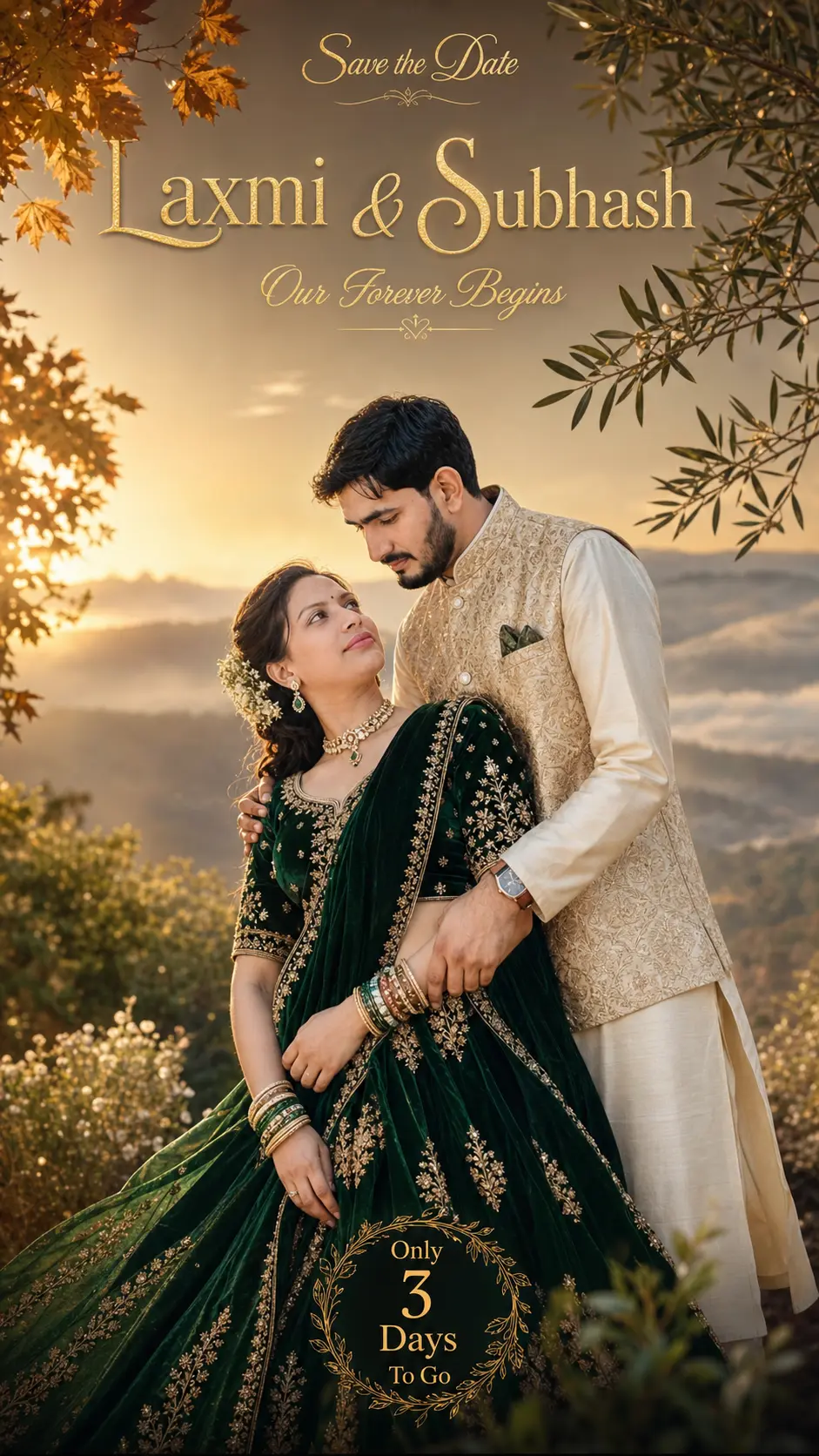
Read the guideA luxurious, cinematic 9:16 vertical wedding portrait of a couple in the exact same romantic dip pose as the reference image — the man gently supporting the woman as she leans back, their hands softly clasped. Their expressions are natural, deeply emotional, and joyful — soft smiles, loving eye contact, candid chemistry, slightly wind-swept hair for realism.
Golden hour setting with warm, glowing sunlight, soft haze, and a dreamy mist-covered valley in the background. Elegant maple and olive branches subtly frame the top corners. Shallow depth of field with creamy bokeh for a high-end editorial wedding look.
The woman wears a rich emerald green velvet anarkali gown with intricate gold zardozi embroidery, detailed textures, flowing fabric, styled hair with fresh flowers, kundan earrings, layered bangles, and a delicate mangalsutra.
The man wears a cream silk kurta-pyjama with a gold brocade Nehru jacket, fine detailing, a pocket square, and a classic elegant wristwatch.
Color grading is warm, cinematic, and romantic with soft highlights and rich contrast. Ultra-detailed fabric textures, realistic skin tones, premium photography style.
Text design (luxury wedding typography, gold tone, elegant layout):
Top (small elegant script):
“Save the Date”
Center (large stylish mixed font):
Laxmi & Subhash
Below (romantic tagline in script):
“Our Forever Begins”
Bottom (clean modern font inside subtle floral wreath or line design):
“Only 3 Days To Go”
Typography is balanced, minimal, and premium — not overcrowded. Soft glow on text, perfectly blended into the scene.
Ultra high resolution, professional wedding photoshoot, magazine-quality, luxury Indian wedding aesthetic.
100% should match face.
No sign-up needed. You can also select and copy the text manually.
More inspiration for you
View all →
SponsoredAd
The creator's guide
How to use Wedding Countdown Prompt
Use “Wedding Countdown Prompt” as a starting point for your Wedding creation. The guide below highlights instructions from this specific prompt and shows what to change when adapting it to your own idea.
01
Get ready
Start with a clear reference photo. Upload it to an AI tool that accepts images before pasting the prompt. Choose a well-lit image with the subject unobstructed.
02
Copy & create
Copy the complete prompt above, paste it into your AI tool, and generate a first version. Keep the original instructions for your first attempt.
03
Refine one detail
Check the eyes, hands, skin texture, and likeness first. If the face changes too much, ask to preserve the reference identity and remove conflicting appearance instructions.
Inside this prompt
Lighting
Golden hour setting with warm, glowing sunlight, soft haze, and a dreamy mist-covered valley in the background
Composition
Elegant maple and olive branches subtly frame the top corners
Style
A luxurious, cinematic 9:16 vertical wedding portrait of a couple in the exact same romantic dip pose as the reference image — the man gently supporting the woman as she leans back, their hands softly clasped
Three variations to try
Try one follow-up at a time after generating your first result.
Change the mood
Keep the subject and composition. Replace the lighting with soft natural window light and a calm, muted palette.
Make it your own
Keep the visual style. Replace the setting with a location of your choice and remove any details that conflict with the new scene.
Adapt the framing
Keep the face and identity consistent. Leave extra space around the head and shoulders for a square profile-picture crop.
If your result looks different
The preview is a visual reference, not a guaranteed output. Results vary by model, settings, and reference image. Keep the instructions that matter most, remove contradictions, and change one detail between attempts.